Category: Tech

Tech Repairs and Suggestions for Electronics, Appliances, etc.

  • Budget website design – how to find it

    Budget website design – how to find it

    My day job is designing websites for small business owners who don’t have bottomless pockets to have an internet presence.

    I believe every brick and mortar business needs a website these days. It’s become a requirement for a credible appearance to customers and if it does nothing else, it gives prospective customers your location and contact information. If you don’t have a store, it’s even more important. The site doesn’t have to be huge, but it needs to be current and well done. It will often be the first impression a prospective new customer has of you, so it needs to be a good one.

    oatmeal-bad-website
    Courtesy of The Oatmeal

    I design sites for people who have never had a site before, but often for people who have a site and are paying way too much for it on an ongoing basis. There are some high-priced options being pushed so I’d like to give you some ideas on what to ask about and how to protect yourself from getting snookered. Trust me — good budget website design is out there and you can find it.

    Most importantly — you will want to own all elements of what goes into your website. I’ll explain what I mean later. If you have a complete blow out with your designer, or if he or she gets run over by a truck, you want to be able to pick up your toys and go elsewhere. And I mean all your toys.

    Free website design

    If you do a search on Craigslist you can find a lot of offers for free websites. There are some companies who offer a free website if you use their hosting. I have worked with several people who tried the Craigslist route and ended up with hot pink sites, kaleidoscope backgrounds, comic sans fonts and terrible layout. I have worked with people who got a “free” website and were paying horrendous monthly fees for web hosting – and their sites looked terrible. I have yet to see a well done “free site”.

    This is where the phrase “you get what you pay for” comes in. While you shouldn’t pay an arm, a leg, and your first-born for a website, you don’t get professional, polished, and current web standards for free.

    What you should pay for

    So there are no surprises, there should be three things you have to pay for: 1. URL registration (annual charge), 2. web hosting (monthly or annual), and 3. the design of the new site (one time charge). Changes later on would be an additional charge.

    My personal opinion is that small businesses do better with a small designer – as long as they are reliable. Big companies charge big bucks. There are probably exceptions to this.

    The flip side of this is the DIY computer generated sites that use canned images. They may not cost a lot, but I don’t think they are a good first impression to present to new customers because they look like a DIY computer generated site. Even if you’re a blogger, unless less you are talented at graphics and design I think you’re better off hiring a designer.

    How much should it cost?

    I’ll use a couple actual customers as examples. Customer A had an obviously canned site with the same images on each page, very little text, poor images, and lots of misspellings. For the design and hosting he was paying $114.95 A MONTH. I almost had a stroke. So in 5 years he would pay $6,897.00 for his site. Goodness. I designed a new and better site for him for under $1000 and he prepaid for 2 years of hosting at $3.99 a month or a total charge of $95.76. Even if it goes up to the normal $7.99 a month, which I have encouraged him to call at the end of 2 years and see if they’ll give him a deal, he’ll pay less than $3000 for his site over the 5 years. Beats the heck out of almost $7000.

    Customer B also had an obviously canned site that was terribly outdated and was paying $19.95 for the site and hosting or $1,197.00 for 5 years. Not as heart stopping, but I thought that was too much considering it was for an ugly site. I did a new site for them and with the deal I got them for hosting they will pay around $900 for 5 years. Not a huge savings, but they now have a nice, updated site and total ownership (and therefore total control) of all the parts of the website.

    There is very reasonable web hosting out there that performs very well so if you can find a designer who can do a nice job for a decent price the above examples should be possible for anyone.

    Own your URL

    Never, ever sign up with someone who owns or controls your URL. The URL is www.yourbusinessname.com. While a reputable designer will work with you on coming up with a good URL for your business, they should never, ever want to own it. Register the URL in your name and pay for it with your credit card. You control your URL now and always. It is the singularly most important thing about your website and will stay with you even if you have many different designers and web hosting services over the years.

    Ask for references

    Ask to talk to a couple of people the designer has done work for and get not only the URL of the website, but also the client’s phone number so you can ask the client questions. Ask them how long it took the designer to get the site up, how easy they were to work with, how willing they were to make changes if the client didn’t like something, how well written was the final site (was the designer okay with inaccurate information and misspellings or were they meticulous about accuracy, grammar, and spelling)? Would this client use the same designer in the future? That’s a very telling answer. Make sure the designer is a pleasure to work with before you sign on the dotted line.

    Get bottom line price before

    Never go on a pay as you go basis. Get a total published on the web price and what all is included in that price.

    Don’t get sucked into high monthly fees

    I have talked to people who have unknowingly gotten sucked into ridiculous fees. I feel there are big companies who feed off people who simply don’t know any better. If someone wants to charge you over $100 a month for a simple 5 or 6 page site, walk away. Heck, if someone tells you you’re going to pay $20 a month, keep shopping. I regularly set people up on reputable, reliable hosting services that charge less than $90 for THE FIRST TWO YEARS TOTAL. 24 months for under $90. I really recommend locking in the great price for 3 years if people can afford it.

    The price will go up to something like $7.99 a month after the initial period. Call the sales office and ask what the best price is they can offer if you extend another year or two. You may not be successful, but it’s most certainly worth a try. Hosting services know there are many options out there and the good ones work to keep your business.

    Warning: If you are currently with a service that charges a big monthly fee for design and hosting they will most likely make it as painful as they possibly can to cancel and transfer your site elsewhere. It will not happen overnight. It may take many phone calls and long periods spent on hold with lots of hoops to jump through. The effort is worth it to pay less per month and have ownership of your site.

    Pay for your own hosting

    This is another thing you should own. The designer may need to help you get set up. I call and chat with the hosting service and they are happy to then handhold a new customer through the sign up process. You will have to share the login and password with the designer after you sign up or set up another user, but it should be registered to you and paid by your credit card so you are ultimately in control of your site.

    Cost of the website design

    One of the first questions a designer should ask it is what your budget is for a new site. If they don’t respect the number you quote then check with more designers or rethink your budget. Budget website design shouldn’t mean ugly design. Be willing to pay a little bit more if that’s what it takes to have a great site.

    If you need a site with a home page, about page, a contact page, a couple of product or services page find someone who will do it for around $150 a page. It’s initially a few hundred dollars up front, but it’s a cost that should last you for a few years.

    If you don’t know how to do it, make sure setting up all required email addresses is included in the price.

    Find out how much they will charge if you want something changed in the future.

    Google and Bing

    Make sure the designer registers your site with google and bing webmaster tools. I also suggest brick and mortar or service companies be registered in both Google and Bing Places. You can do this yourself but ask your designer if this stuff intimidates you.

    Update your site

    At some point all sites look old and dated. Web standards evolve and styles change. If all the information is still valid find a designer to update your site so it looks current. An old-fashioned site isn’t the first impression you want people to have of your business.

    You can contact me through this website or at Gale at Winding-RoadDesign dot com if you have any questions. I’ll be happy to help if I am able — even if you’re using someone else for web design.

    I will update this post as I think of more things.

    Visit me at my day job at Winding-RoadDesign.com

     

  • Cloning a failing operating system hard drive

    Cloning a failing operating system hard drive

    This is not a how-to. No pictures. This is rather the tale of a fairly proficient user who isn’t afraid to beat her way through computer problems. The key to success is that most people have more than one computer in the home these days, so if you get stuck you just use the other computer to research until you find the answer. FYI – the computer is a Windows 7 desktop.

    I’ve known for a while my hard drive was failing. I started getting the dreaded BSOD (blue screen of death) and the system would shut down and restart. I researched the information I got from WhoCrashed  (Microsoft’s crash info is useless) and was not able to fix it no matter what I tried.

    It was suggested on some forum’s discussing my particular error to do some tests. I did a checkdisk that took two days for my 640 GB drive and found bad sectors. I used memtest to check the memory and it was fine. I downloaded the diagnostics from Western Digital and it told me there was enough damage to the drive that it should be replaced.

    So now I had confirmed what I already knew.

    I’d been putting this off because I was sure it involved installing Windows on a new formatted drive and then each and every one of my many, many programs. It would take me days. I’m sort of a power user.

    Putting off addressing a failing hard drive is fairly suicidal if all your data resides on the drive without backup. If that is your situation, get a new hard drive as soon as you suspect the problem. Or play Russian roulette with all your data. Your choice.

    Since the operating system drive is the most heavily used drive and most likely to fail I had gone to a multi-disk system several years ago. All my data resides on other hard drives and is duplicated on even other drives so if one craters on me I have another place to go for the files.

    I love cloud storage, but I have gone completely digital. All my music, all my movies, all my photos( I even scanned every single paper photo I had), much less all my documents and worksheets add up to a ton of data so I have several hard drives to hold the originals and backups. Really important things are on three different drives. The one exception is my movies – I recently had the drive that held my movie files fail and was able to get it to last long enough to copy it all to a new drive. See my post Hard Disk Drive Failure – what to do.

    A great alternative

    Then I stumbled across imaging or cloning the drive. Wow – what a concept. Copy the drive to a new drive and have it functional with the operating system, all existing programs, even all the data on the drive. Cool! I was in.

    After more research I decided to go with a free program called Clonezilla. My computer has a raid system with hot-swappable drives. For the uninitiated, that means I can pull out and replace drives without shutting down the computer (all except the operating drive). It’s wonderful. What it also means is it would be easy for me to put the new drive in one of the hot-swappable spots and copy from the operating system drive.

    I need to warn you this process isn’t for the faint of heart. Unless you’re very knowledgeable or of the mindset that you will beat something into submission if that’s what it takes, you might not want to try this. I fall into the latter group.

    The method

    Or lack thereof. I really stumbled my way through this.

    I put in the new drive and went to disk management under administrative tools. It had the new drive and I box popped up asking if I wanted to add a boot sector, so I let that process. I had read “Disk cloning software may not be aware of the hidden partition and as a result only clone the Windows 7 partition, leaving you with an unbootable hard drive” so I wanted to make sure that boot sector was there.

    I removed all the other hard drives so I was down to the two I needed.

    I had already downloaded and created a bootable USB drive containing Clonezilla while I was waiting for the hard drive to arrive from Amazon. By the way — I got a 1 TB Seagate drive for $59.99.

    There are numerous blogs and youtube videos on how to use Clonezilla. These are some I looked at:

    https://www.youtube.com/watch?v=YzxL95GmmYk

    http://lifehacker.com/5517688/how-to-upgrade-your-tiny-hard-drive-to-a-spacious-new-one-and-keep-your-data-intact

    http://arga.wordpress.com/2010/04/24/how-to-properly-clone-a-windows-7-system-partition-with-clonezilla/

    They directed me how to get Clonezilla going. I started cloning the image to the new drive. It didn’t get very far until it bailed out telling me there were bad sectors on the drive and couldn’t go any further and mentioned I could use “rescue”. Didn’t tell me how to do that, but mentioned that I could. The adventure begins.

    Expert mode in Clonezilla

    It was easy to get into the expert mode. It was not easy to figure out how to use it. I tried repeatedly to select “rescue” but there were no directions on the screen and if I hit enter it went on to the next screen with no “back” option so I would have to reboot and try again. And again. Argggg.

    I finally found this PDF on using expert mode ftp://ftp.itb.ac.id/pub/Clonezilla/clonezilla_live_doc/QuickReference_Card_0.9.5/ClonezillaLiveRefCard_EN_folding_0.9.5.pdf and it mentioned you use the damn space bar to select options. How the hell would I have ever known that? I was getting a little testy at that point.

    I also selected “Check and repair source filesystem before cloning” but I need to make it clear — I had absolutely no idea what I was doing. It just sounded like a good idea.

    Rescue mode

    The rescue found many bad sectors that it couldn’t copy. So many in fact, I was beginning to wonder if I would have trash on the new drive. Then I looked up that a sector is 512 bytes. I did the math and found out that 640 GB drive had roughly 1.23 billion sectors. I was less worried.

    The copy took a surprisingly short amount of time. Definitely less than an hour. The new drive contained the exact same stuff as the old drive.

    It wasn’t over yet

    I pulled the old operating system drive and installed the new one like I had it all figured out. Wrong. No matter what I did I couldn’t get the computer to book. I put the old operating system drive back in. I got into windows and went into disk management and it told me there was a conflict so the new drive was inactive. More research with no good answer so I made it active. What the heck.

    I pulled the old operating system drive again and tried booting from the new drive. I may have booted that poor computer 20-30 times today.

    I was asked for the Windows repair disk since it couldn’t boot. It tried to do a repair and failed. I tried booting again several times. Finally it asked for the original Windows disk. I put that in, it ran for a while and the computer booted from the new drive. Go figure.

    Final detail

    After I properly installed the new hard drive and reassembled the computer I booted it up and found one more issue. When looking at it in disk management there was about 350 GB of unallocated space. How they heck do you fix that.

    More research and forums suggested easeus partition manager to fix partition issues. That piece of crap installed a bunch of malware. Goody — more computer issues to resolve.

    I got back into disk management, right clicked on the allocated part of the drive and merge was one of the options. I clicked it and the unallocated part was brought into the allocated part. Woohoo. That was easy. Well, except for the easus mess I had to clean up.

    How long?

    Believe it or not I started at 10:00 AM and was up and running at 1:30 PM. Three and a half hours. I doubt I would have had Windows 7 installed in that amount on time, much less the task of re-installing all my programs.

    Malware cleanup


    The 3.5 hours doesn’t include cleaning up the malware though. Later I used ADW Cleaner, Junk Removal Tool, and Rkill that I got from Bleeping Computer. Great cleaner programs. It didn’t take long to get rid of it.

    I swear if I get the stupid conduit search protect crap installed one more time I’m going to go after someone with a bazooka. I couldn’t believe even a download from CNET included that, so I won’t use them anymore. Here’s a wiki on what to do if you have it http://www.wikihow.com/Remove-Conduit-Search-Protect.

    What do I think of cloning?

    One of the first posts I read said that cloning wouldn’t create a boot sector. Maybe some cloning programs don’t, but Clonezilla does. The whole process was really incredibly easy. There are always extraneous issues to deal with when you do this sort of thing, so I don’t feel what I had to figure out was that bad. Not compared to re-installing lots and lots of programs.

    I’ve tried quite a few programs and so far all are running really well. If I encounter problems down the line I will post an update.

    The nice thing – I shouldn’t have to worry about this for a long time.


  • What’s living in Your keyboard? How to clean a keyboard

    What’s living in Your keyboard? How to clean a keyboard

    I do a lot of typing so when my space bar started missing about half the time it became incredibly annoying. I have a wireless keyboard so I checked the batteries and they were in good shape.

    I was typing an email this morning and I was missing almost every space in a sentence and out of utter annoyance I got a small screw driver and popped the space bar off. My jaw dropped.

    There was so much dog hair and so many crumbs under it I had no idea how it had been able to function at all. Yes, I do eat at my desk. But the dogs live on the floor — how did so much hair get in there?

    I have to confess I was so mortified by the filth I immediately blew it out with a compressed air can and wiped it out with a cotton swab so I have no pictures to memorialize it. It was gross.

    I am not kidding — if mice were small enough they could have started a colony under there. Between the dog hair for nest building and the crumbs for sustenance they could have had a wonderful life.

    I figured I better check under more keys and this is what it looked like after I popped the control key — this key was about half as bad as the space bar had been and look how bad it is. Man – was it ever time to figure out how to clean a keyboard.

    What's living in Your keyboard? - The DIY Girl

    I probably popped a dozen keys off. I blew out the hair and crumbs and used a swab dipped in alcohol to wipe out the gunk. And believe me, there was gunk as you can see on the bottom of the control key.

    What's living in Your keyboard? - The DIY Girl

    Reassembly

    A lot of the keys were simple to pop back on. A few like the space bar, control key, enter key and delete key had little metal bars that had to be put under a bracket on the keyboard and then the key turned to snap down. I have no idea why these keys need the little bar, but it’s kind of a fragile set up on the back of the keys so I was careful with them.What's living in Your keyboard? - The DIY GirlThis, like the washing machine rust, was a little cleaning project I should have addressed a long time ago. I had idea how much crap could accumulate under those close fitting keys.

  • Surge protection for appliances – do it now!

    Surge protection for appliances – do it now!

    After a repairman told me a surge probably fried the electronics controlling the compressor on my refrigerator and suggested I get a single outlet surge protector I started doing some research.

    Which appliances are at risk?

    Appliances used to be a lot simpler than they are now. Now everything is digital and electronic. I found the following comment on BobVila.com:

    Interesting how refrigerators have changed… Now 2013, leading OEM’s include leading electronics manufacturers, Samsung, LG, etc. Today they are laden with electronics, motherboards, digital displays in the door, LED’s, etc. all subject to surge damage, especially in those regions that experience weather with lightning/energy surges.

    The more I read, the more it made sense to follow the advice of the guy who repaired my refrigerator and get a surge suppressor to protect it. But I also found out there are a lot of other appliances that need protection as well.

    If I have a new refrigerator, washer, dryer, or stove with fancy electronic displays I’m putting a surge protection plug on them. Same thing goes for my flat screen televisions. I also read putting one on a garage door opener is a good idea. Anything with complex electronics inside should be treated as carefully as a computer. A refrigerator alone is over $2000 — I’m going to try to keep it and other expensive appliances as healthy as I can.

    First step in protecting your appliances

    The first step is making sure the outlet for your sensitive appliances is grounded. For under $10 you can get a tester like the once pictured left and easily determine the condition of the outlet. If it doesn’t test correctly here’s a good WikiHow that walks you through testing and correcting a problem: http://www.wikihow.com/Ground-an-Outlet.

    Second line of defense

    Some articles suggested a 3 step approach: verifying ground on outlet, whole house surge protection, and outlet surge protection. I’m not sold on the whole house step and will stick with grounded outlets augmented by a surge protector.

    This Old House has a good article on surge protection that gives these guidelines when buying a protector:

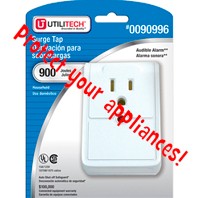
    utilitech-1-outlet
    This is the surge protector I picked up at Lowes

    Before buying a plug-in unit, check that it does the following:
    •Meets UL Standard 1449 (second edition)
    •Has a clamping voltage — the amount that triggers the diversion of electricity to the ground — of 400 volts or less. The lower the number, the better the protection
    •Absorbs at least 600 joules of energy
    •Protects all three incoming lines: hot, neutral, and ground. Look for “L-N, L-G, N-G” (line to neutral, line to ground, neutral to ground) on the product’s spec sheet
    Stops functioning when its circuits are damaged by a surge
    Both whole-house and plug-in types can get zapped without your knowing it; look for indicator lights that signal when a unit no longer works.

    Did you read the “stops functioning when its circuits are damaged by a surge? I’d add one more item to that list of things to look for – an audible alarm. Indicator lights are usually hidden behind the appliance or cabinet and surge protectors with an audible alarm are a safer option. The surge protector I got at Lowes has an audible alert and protects up to 900 joules for $7.30.

    I don’t, however, know how long the surge protector will sound. Since I just came home from a 9 day trip to find a dead refrigerator I don’t know if the alarm would have still been sounding when I got home. But if my refrigerator gets a power surge when I’m home I want to hear about it right away. Below are some samples I found – my top pick is the RCA which has 1500-joule surge protection with audible alarm that allows you to plug into the side so the appliance can be closer to the wall, but it’s $18.23:

  • Refrigerator repair – DIY or not?

    Refrigerator repair – DIY or not?

    This Sunday I returned from a nine-day camping trip to find a totally dead refrigerator. In fact, the inside of the refrigerator was much warmer than the house since I’d turned the heat way down. Apparently the fans and other parts heat things up when the compressor stops cooling. Oh joy.

    It must have died several days before because everything was completely thawed and stinky and all the food was a total loss. The good news? It was a terrific opportunity to clean the fridge and freezer since it wasn’t cold and full of food 😉 Trying to look on the bright side here… Couldn’t face the sadness of throwing all that food out Sunday night so Monday morning I emptied both the refrigerator and freezer and thoroughly cleaned both sides.

    The repair

    I did a lot of research online Sunday night and couldn’t find good information on how to figure out what was wrong. I lucked out and was able to get a repair person out Monday afternoon — no small feat in the rural community I live in.

    The guy quickly diagnosed it was the run capacitor and relay for the compressor, told me the repair would be $229 ($129 for parts and $100 for labor), and went out to his truck to get the replacement part. When I saw the part number on the capacitor I looked up it up on the internet. The part shown at left was $11.24 on Amazon. $229 vs. $12??? It was a tough call for me, but since I didn’t know much about compressors and had struck out finding information the night before I decided to let him do the work and have a functional refrigerator immediately. He knocked the price down to $200 when he did the bill. By the way — if I would have decided to do the repair myself I would have owed a $75 service call charge.

    Further research

    whirlpool-run-capacitor-2169373-ap3131713_01_mSince there were two parts involved I tracked down the other one on Appliance Parts Pros. This parts sells for $33.30 so the total parts to do it myself would have been $44.54. $44.54 vs. the $100 final price isn’t quite as bad. $100 to have the man drive way out to my house and spend 45 minutes here is fairly reasonable. The net difference would have been $119.54 with the service call vs. his repair of $200. I can live with that.

    Next time

    If the same thing happened again and I was home and stood a chance of saving all the food if the refrigerator could be repaired quickly I probably would have someone come to the house again and cough up another $200.  That said — if all the food was ruined and I wasn’t in a huge rush I would order the parts and do the repair myself — now that I know what needs to be done.

    Could there be a next time? The repairman said the parts he replaced were probably fried by a power surge and strongly suggested I get an appliance surge protector to prevent it from happening again. I bought one that afternoon.

    See next post Surge protection for appliances – do it now! for information on surge protection.

    I found this at http://appliance911seabreeze.com/ to help next time:

    HOW TO CHECK FOR A BURNED OUT COMPRESSOR

    Unplug the refrigerator and remove the back panel that covers the compressor. There should be 3 wires going inside the cover of the compressor. Mark all 3 and mark their location so if compressor is OK you can put them back in same order. The plastic cover may snap on and you may need to squeeze the sides to unlock the cover and sometimes there is a metal clip holding the cover in place. Remove the cover. May look hard but it’s simple. There will be three connections under the cover and 2 will go through the start relay. Unplug them leaving the three prongs exposed. They may be marked R =Run, S=Start and C=Common. Set your meter on continuity and then begin by testing 2 at a time until you have checked S to R and R to C an C to S and S to R again. You should get a reading all the way around. If no reading between any of the pairs as you go around you should get no reading between any two the compressor has an open winding and is defective. Then if it passes that test then touch one probe to R and the other to the copper pipes or clean metal on outside of compressor, then S to metal outside and C to metal outside. If you get a reading this way even just a little. The compressor is a burnout.

  • Leaking dishwasher float

    Leaking dishwasher float

    Having recently moved to an extremely humid area I was not happy with how mildewy the dishwasher was getting between uses earlier this summer. I live alone, don’t go through the many dishes most of the time and they were sitting in that damp environment too long. Wash my dishes in a moldy, mildewy environment? It just wasn’t very appetizing so I decided to quit using the dishwasher and hand wash for the remainder of the summer.

    Now it’s October and I’m getting ready to sell the house so I thought it was time to go back to using the dishwasher — make sure it clean and working properly. I opened it up and sure enough — mold and mildew despite the fact I had cleaned and dried it after I stopped using it. A little online research and I decided to throw in some bleach and run a heavy-duty cycle to sanitize it.

    I was about to walk out the door to take the dogs to the park when I thought I hadn’t used the dishwasher in a while so maybe I should check it before leaving. OMG! There was water all over the kitchen floor. Talk about a panic. The kitchen is over a finished basement and I did NOT want to ruin the drywall down there.

    Leaking dishwasher float - The DIY Girl
    Three layers of flooring

    While redoing the kitchen I had discovered there were 3 layers of flooring in. The bottom layer is a lovely orange indoor/outdoor carpet, the middle a rigid tile, the top the current vinyl flooring. I knew the carpet would be soaking up a ton of water so I had to hurry.

    I turned if off, but the water kept pouring out. I got a bucket and started bailing the water out of it. It was still leaking while I did this.

    Warning: Always assume someone before you has done something totally stupid to what you’re currently working on. 

    I’m working on dragging the dishwasher out from the wall. I am well aware that water and electricity are not a safe mix so I wanted to get the thing out so I could unplug. As I pull it out there is electrical sparking under the dishwasher. What the heck?

    I then make 10 trips back and forth to the electrical box until I finally figure out which breaker turns off the dishwasher. Note to self: thoroughly label the electrical box.

    I finally get the dishwasher completely out from the cabinets and guess what I discover? Someone somewhere along the way had pulled the electrical connectors that I assume go to the heating element. Did they cap them off? No. Did they wrap them in electrical tape? No. They left them dangling with current running through them so they’d drag through the water and cause an electrical short sending sparks everywhere.

    I repeat: Always assume someone before you has done something totally stupid to what you’re currently working on.  Find the circuit breaker first and then move the dishwasher if water is present.

    Dishwasher float mechanism stuck

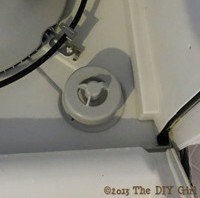
    The dishwasher had been fine the last time I used it so I couldn’t image what happened to cause the leak. I got online to research what could have caused the leak after I set up a fan and space heater to start drying out the carpet. I found a stuck float mechanism in the right front corner tends to be a common ailment. Some have washers that fail, my Maytag didn’t have a washer since the tube the float sits in is molded into the bottom of the dishwasher.

    My understanding is the float is what tells the dishwasher to stop filling. It rises with the water and releases the switch that turns off the fill. Either the switch or the float had failed on mine.

    Leaking dishwasher float - The DIY Girl
    Float inside the dishwasher

    As suggested in some posts I removed the float and found a lot of solidified gunk in the very top of it. I used a Q-tip to dig it out and get it completely clean.

    Leaking dishwasher float - The DIY Girl
    Float switch on bottom of dishwasher – you can see the gray stem of the float resting on the switch mechanism

    I removed the switch, cleaned all the years of accumulated gunk off of it and replaced it.

    Test run

    I had to do a test run to see if I’d solved the problem and I wanted it out on the vinyl floor so I could contain it. If you ever do this, be prepared for the noise. I about had a heat attack when I turned it on, thinking something was terribly wrong, but a dishwasher is just really loud when not encased in cabinets. And my dishwasher model is a “Quiet 300”. No leaking after a 9 minute rinse cycle.

    Maybe the gunk inside the float hardened while not being used and froze the float. Who knows? Just glad it’s working properly once again.

    Dishwashers are designed to not leak when level

    So how do you level a dishwasher once it’s inside the cabinet? I could level it while it was out in the middle of the kitchen, but with all the flooring thicknesses in the cabinet I had no way of knowing if the front to back level would change. I had opted to put 2 strips of 1/4 MDF down to raise the floor in the cabinet to the same level as the rest of the kitchen floor — that way I wouldn’t have to worry where each of the 4 feet were sitting.

    Leaking dishwasher float - The DIY Girl
    MDF strips to level dishwasher — I can’t get over how hideous that carpeting is…

    Once again — If your dishwasher leaks control the panic over water flowing everywhere long enough to kill the power first. Then start containing the flood. I’m lucky I didn’t zap myself.

  • Changing your in-cabin air filters

    Changing your in-cabin air filters

    Car Repair Tips for Fast Fixes

    Recently I was reading a Family Handyman online article on 5 things you should do for your vehicle and it mentioned changing the in-cabin air filters once a year. If you click on the image to the left it will take you to their article.

    I’d had issues with the filters leading to my cabin. I had parked my vehicle outside at a friend’s house for a few days while we traveled and when I got back the smell in the car was grotesque. A ridiculous amount of money later I found out that in my absence a mama mouse had gotten in there and had a bunch of babies — they all died and made my car smell like an abattoir. As I mentioned, they charged me so much money to clean the mess I figured the dash had to come off. They never once mentioned there were filters involved that could be replaced or should be replaced annually. Great repair shop.

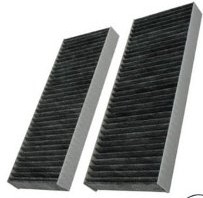
    The Family Handyman article was the first I heard of putting in new filters annually. I checked online and found the filters aren’t hard to access on my Nissan Xterra. You squeeze the sides of the glove box to make it flop down and then release a little string that holds it. The cover to the air filters is behind there. A little more research and I found the air filters (my vehicle takes two) online for $11.

    The filters arrived yesterday so this morning I pulled out the old filters and found they were filthy and still full of mouse poop! They hadn’t even cleaned the filters out! I was not happy to see that I’ve been breathing mouse poop for almost 2 years. I wondered if the filters had ever been changed on my six-year-old vehicle.

    It took me all of 15 minutes to get the dirty ones out and get nice, new clean ones in. This little piece of maintenance it going on my calendar to be done every September from now on.

    Not all vehicles have in-cabin filters, but it’s definitely worth checking to see if you have some that may need to be changed.

    Follow up note: The fan for my heater/AC had been noisy ever since the guys removed the dead mice. Level 3 was annoying and Level 4 was getting really annoying. I figured the mice or getting them out had damaged something.

    I cranked up the AC after putting in the new filters and no more annoying noise, just the normal whirring of the fan. My thoughts? Maybe the fan has to work really hard to pull air through filthy filters and is now able to pull air easily. Seems like filthy filters may be a good way to wear out the fan before it’s time. Another reason to change the filters regularly, that is if breathing clean air isn’t enough.

  • Moving WordPress Blog To New Hosting and Changing URL

    Moving WordPress Blog To New Hosting and Changing URL

    moving-wp-featureI develop sites for clients on my own host server which happens to be HostMonster. Been with them for years and haven’t had any problems, so while there are cheaper options, I figure why fix something that isn’t broken. When working for a client I share the url for their test site so they can view and approve the work. When the site it completed I move it to their server. 

    FYI – I’ve been recommending PowWeb most of the time for small business sites because they have good prices. When you go to sign up you should leave the sign-up page at least once because PowWeb often will offer a lower price if you’ll stay on the page. After you signed up they will contact you and usually offer extended deals. I’ve been setting up clients for 3 years hosting at less the $125. I find their interface intuitive, they aren’t constantly trying to gouge you for add-ons like GoDaddy (I would never use them), and when I call for technical support I am not on hold for a long time and they are extremely helpful. I love their tech support.

    Because I haven’t moved a site in a while I looked at the WordPress Codex for direction and found their Codex less than thorough. Sometimes is seems like people don’t take into account the different levels of experience and if  you have to perform brain surgery they offer directions like Step 1. Perform the surgery, Step 2. Finish the surgery. Oh gee, thanks. I think I need to know a tad more than that. Feel free to peruse their instructions.

    Since I flogged my way through it today I thought I would write it up to make it a little easier for myself next time and maybe help some others. Keep in mind that everything changes – WordPress, MySQL, host servers – so while these directions worked perfectly today, they may need variations somewhere down the road.

    If you would like to change hosting and not have to reinvent the wheel, this really isn’t that bad of a process if you’re new to it. You’ll need:

    • Text editor
    • FTP software like Filezilla
    • Safe Search Replace (where to find it is in the directions)
    • access to your old host server
    • access to your new host server
    • at least a basic knowledge of MySQL or an adventurous spirit
    • at least a basic knowledge of phpMyAdmin or an adventurous spirit

    If you’re already scratching your head wondering what the heck all these are, you might want to get help before proceeding. I’m completely self-taught, but there’s always the risk of really buggering things up. I choose to live with that risk — you may not.

    Making the move

    Warning 1: Make sure you have a backup of your old blog’s WordPress database before proceeding!

    Here’s a PDF of these instructions if you’d like to print it out.

    Part A – Moving WP Files and Database from old hosting to new hosting

    This will involve getting the old WP files and database onto your local computer and then uploading it onto the new server. This is a little redundant, but I would rather err on the side of caution so don’t skip steps. It may save your butt later.

    1. Download WordPress installation: Download a backup of your entire WordPress installation (all the WP files from the old site) to your hard drive. Name a folder something appropriate to indicate this is your OLD blog (I use FileZilla to FTP files back and forth from my computer to the hosting service).

    2. Export a backup of your database: Export a backup of your database to same OLD blog folder. This will be a .sql file or a .zip if you compressed a large database. While logged into your old hosting server use MySQL, go to phpMyAdmin, select your database (not one of the tables) in the left hand column, go to Export Tab, depending on the phpMyAdmin interface you will either:

    a. Leave “Quick – display minimal options” checked and simply click Go and it will let you name the download

    MySQL interface in HostMonster
    MySQL interface in HostMonster

    b. or you will need to leave everything as is and go to bottom of screen, check “Save as file”, then click Go and save your file.

    MySQL interface on PowWeb
    MySQL interface on PowWeb

    This is your safety net. Make sure you keep it safe and don’t overwrite the files!

    3. Change URLs in old blog: Log into your OLD blog on the old server and go to SETTINGS and change the url for both WordPress Address (URL) and Site Address (URL) to the URL for the site on the new server. You will not be able to log into WP on your old site after this.

    Time to get the files that will go to the new server.

    4. Download your entire WordPress installation: After changing the URLs in the WP Settings, download your entire WordPress installation AGAIN (all the WP files from the old site) to your hard drive and name a new folder appropriately to indicate that this is your NEW blog’s installation files.

    5. Export your database: Export your database once again (but keep the old one safe) using same instructions as Step 2 and put this export in the same folder as the newly downloaded WordPress installation.

    6. Create a new database: This process varies among hosting servers so I can’t offer images. Go to your new host server and create a new database in MySQL. It will be easiest if you use the same DB_NAME, DB_USER, and DB_PASSWORD as on the old server. If you are unsure what they are, go to the wp-config.php in the WordPress installation files and verify it.  If you change them be sure to note down the EXACT ones you use.

    7. Import the databaseImport the database export you got from the old server to the newly created database on the new server using phpMyAdmin/Import. Choose file (newly exported database in new blog folder), leave all other settings the same, and click Go.

    Import tab in phpMyAdmin

    8. Using a different database name/user/password: If you used a different database name and/or user (see previous step), edit wp-config.php in your NEW blog’s installation folder appropriately. I use Notpad++ for editing files and love it. And it’s free 🙂 (Be aware that using the Windows notepad can embed unwanted code that will not work sometimes. Never use word processing software.)

    a. Make sure DB_NAME, DB_USER, and DB_PASSWORD match what you set up when you created the new database on your new hosting server.

    b. Upload this file to the WP directory on your new hosting server.

    Part B – Changing URLs in Database

    The use of Safe Search Replace was recommended by WordPress in the Codex so I thought I’d give it a try. Wow — talk about painless. Just make sure you give it the correct information to avoid GIGO (garbage in garbage out).

    1. Download Safe Search Replace.

    2. Change the name of Safe Search Replace searchreplacedb2.php to something else. I used “url-rename.php” (changing the name is recommended by them because apparently hackers look for this file so they can hack your site).

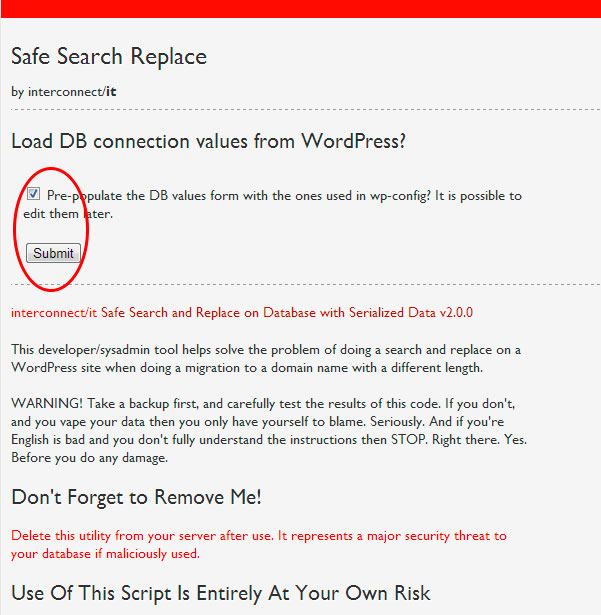
    3. Go to Safe Search Replace by entering www.your-url.com/url-rename.php or whatever you named the .php file. I left Pre-populate checked and clicked submit (Note the “Don’t forget to remove me” reminder near the bottom of the image).

    safe-search-replace

    4. Enter database information: The next screen will ask for the following information (I didn’t get a screenshot of this):

    Your Server Name:
    Database Name:
    Database Username:
    Database Password:

    I went to PowWeb/CPPanel/MySQL – choose database – generate code option on right to verify the values for Safe Search Replace. Where this is located will vary in different host servers and may require a call to tech support to make sure you have the right information. Make sure this is correct. Don’t be afraid to call tech support — that’s what you pay for. If you’re brand new to this tell the person you speak to so they can break it down to terms you understand.

    While you’re at it, make sure you have corrected wp-config.php. Pull it up in an editor and verify.

    5. Changing urls: When asked what to find and replace enter old url and new url  (I didn’t get a screenshot of this):

    www.old-url.com
    www.new-url.com

    Let the program do its magic.

    6: DELETE the url-rename.php (or whatever you called the php file) or sneaky, dishonest people will use it.

    Congratulations!

    That’s it. You should be able to type in the new URL and the site will come up just as it appeared on the old host server with all the posts, images, and pages. Go to wp-admin and enter the same user and password as on the old server and you can edit the site.

    Pretty painless, all things considered. Moving the WordPress Installation files is a piece of cake, using Safe Search Replace made moving the database a piece of cake as well.

    If you have basic questions, email me and I’ll see if I can help.

  • Cancelling Verizon FiOS

    Cancelling Verizon FiOS

    I absolutely, unequivocally adore FiOS. I was in one of the lucky first neighborhoods to get it and it was flawless for the years that I had it. When I decided to move, I was terribly disappointed it wasn’t available in the area to which I was moving. I hope to someday live where it’s available again.

    That said — beware of the cancelling process. Especially if you’ve made the decision to not spend the money on a Verizon phone line. I had internet only – no TV, no phone. 

    I was talking a few months ago to someone who works for Verizon and he commented it’s amazing they stay in business with the dumb things they do. I would concur.

    Weeks before my move I checked with Verizon via telephone on how to cancel my service. I was told to return the modem to the local Verizon store.

    It was something I dreaded. I wanted internet until the last possible moment which meant I needed to turn in the modem after the movers took my stuff and before I left for good the next morning. I was completely exhausted when I walked into the Verizon store nearest my home and was promptly told “Oh we don’t take modems here. Only certain stores taken them and the nearest one is blah, blah blah.” I had way too much to do to do a tour of the Dallas area seeking a Verizon store which would actually take the damn thing.

    I called Verizon on the way back to the house and the guy on the phone said he’d cancelled my account and wanted my new address to send a shipping box in which I could return the modem. Sounded perfect because that meant I didn’t have to deal with it before getting out-of-town.

    The day after I arrived at my new home I boxed up the modem and power supply and got it on its way to Verizon. Problem taken care of.

    Not even close.

    I realized a couple of months later I was still being billed by Verizon. I called and after being transferred five times I explained my problem. 45 minutes later someone finally said they had indeed received the modem and they would cancel my account and start the refund process.

    I was billed again the next month. I called again and queried at the end of the call requesting my account be closed and a refund processed — Don’t you need my new address? Oh no, they weren’t able to change the address. The account was closed so no changes were possible.  At this point I figured I had about 2 hours of phone time into this issue.

    Verizon-FIOSThey said they would send all correspondence to my old address. A final bill would go there and then a couple of months later a check would be sent there as well.

    Working very had to not get hostile I explained that I hadn’t lived there in three months and my mail forwarding had expired. They had to change my address. Another half hour on the phone, transferred to three more people and the person finally thought they had the address updated.

    The final bill did come to my new address. Two months later when I still hadn’t received my refund check I gritted my teeth and called again. My refund check had just been processed and I should have it in a few days.

    It took more than a few days because they addressed the check to the old address, but fortunately the USPS forwarded it on to me.

    Five months to cancel the account and get a refund for 3 months of billings after it had been cancelled. With the incompetence of the people I spoke to and the clumsiness of their system I too am surprised they stay in business. In my opinion FiOS is a great product, but Verizon needs to bring up the rest of their systems to match it.


  • Hard Disk Drive Failure – what to do

    Hard Disk Drive Failure – what to do

    A little background

    A few years back I had the operating system drive in the computer then die at an inopportune time. Is there ever a good time?

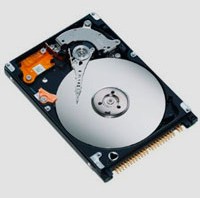
    dead-driveI did what I had done in the past. I’m not sure if this is out of sheer stubbornness or belief that it’s doable, but I tried the drive over and over again using a boot disk until it came on one time so I could get the important data off of it.

    I replaced that PC since it was outdated and when I shopped for the replacement I wasn’t terribly concerned about hard disk space since I planned to have only the operating system and programs on that C: drive. The drive that contains the operating system and programs runs a lot more since if the computer is on, that drive is in action. Which logically means it’s the most likely drive to fail. If only the operating system and programs are on it, no big deal. Get a new drive, install the operating system and programs (no small feat by any means if you’re a heavy PC user) and you’re back in business.

    Never again would I entrust important data to the drive that runs the system.

    So where’s all the data?

    I have a lot of data. I have tons of images, I have an immense music library, I have a lot of documents, I design websites. All of these (anything that isn’t the operating system or programs) are stored on redundant external drives so I have at least 2 copies in case of drive failure.

    I know some recovery specialists recommend burning stuff to DVDs since they aren’t vulnerable to disk failure. I would rather invest in hard drives than have stacks and stacks of DVDs. If I had all my data on DVDs it would literally be stacks and stacks.

    Latest disk failure

    A drive where I store video files was giving indications it was about to give up the ghost. I suspected this not only because it was failing to showing up in Windows Explorer on occasion, but also because of its age — this drive had been attached to my previous PC so it had put in years of service above and beyond the call of duty.

    I thought about being proactive and ordering a new hard drive before it failed so I could copy all the videos off of it, but procrastinated and it went belly up yesterday. Really belly up.

    As in the past I tried over and over plugging the USB cable in, powering it down and powering it up. Nothing. I held it to my ear and hurt it ticking away. A certain sign of a really dead hard drive.

    I considered dropping it and freezing it. I’ve had friends tell me they’ve recovered data this way, but I figured it was already damaged internally and dropping it or adding moisture from the freezer would only exacerbate problems. I researched online and found plenty who warned against this procedures.

    Stubbornness

    There wasn’t anything on the drive that I couldn’t live without and I considered giving up. But then that stubborn streak reared it’s ugly head and wouldn’t let me.

    In the end I resorted to my tried and true method. I continued to reconnect the USB, power it down, over and over and over, ad nauseam.

    And guess what? It came back on. It not only came back on, but it stayed on and allowed me to copy every living last file off of it to a drive that had open space. Cool!

    Guess what I did this morning? I researched and ordered a new hard drive so I can copy all my video onto a separate drive again.

    Protecting yourself

    Keep redundant backups. Many external drives come with automatic backup software to make it easy. If you don’t have a lot of data, burn it to DVD. There is also software to clone you drive.

    If it starts showing signs of failure or is over 3 years old, be proactive — get another drive and copy the files before you loss stuff.

    If you haven’t done any of the above and you have a drive fail, don’t give up. Keep trying over and over to access the drive and you may end up being pleasantly surprised. It may take some time, but it will be a heck of a lot cheaper than taking it to a data recovery specialist and a lot less painful than losing everything.